



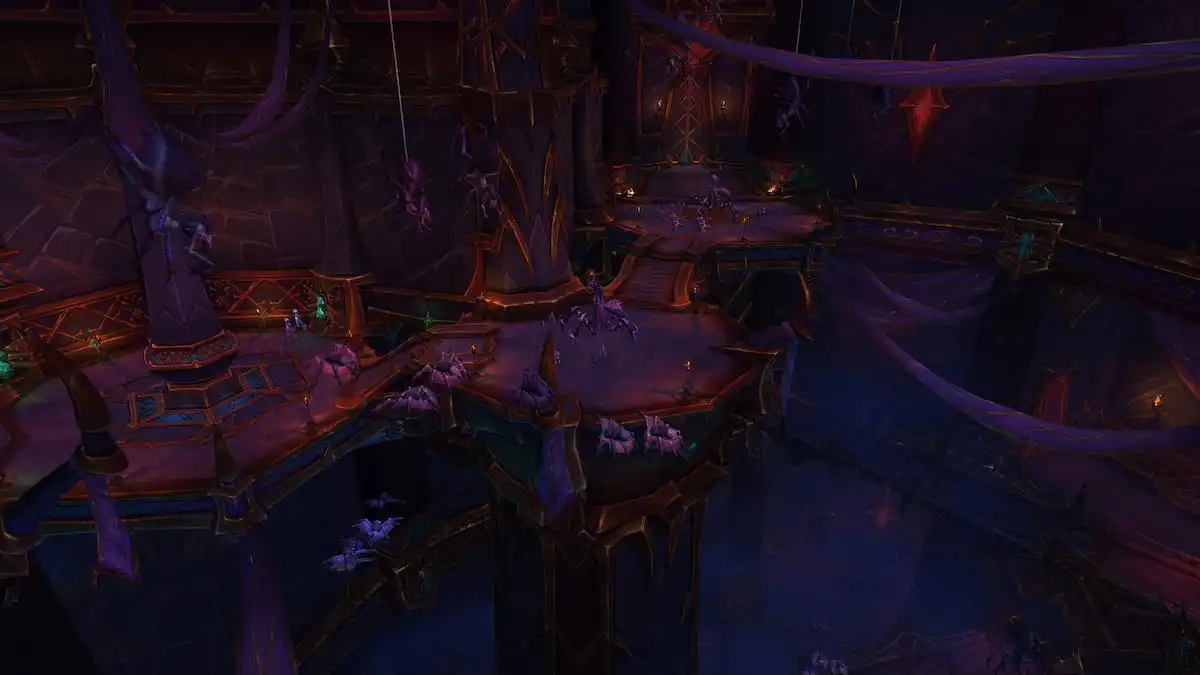
War Within Best Settings guide for maximum FPS
Table of Contents
This game has remained very popular, and its latest expansion, The War Within, takes the experience to new heights with stunning visuals and exciting gameplay mechanics. However, the enhanced graphics and large-scale encounters can strain your system if not properly configured.
Optimisation of the settings is necessary for achieving smoother gameplay and higher FPS if you’re diving into intense raid battles, PvP arenas, or exploring breathtaking landscapes, our guide is designed to help you find the perfect balance between performance and visual quality, ensuring a competitive edge and an immersive experience
Our main objective is to provide recommendations for system settings that will increase FPS, reduce lag, and deliver a seamless adventure in Azeroth!
Best Graphics Settings
Recommended Settings for Achieving a Balance Between Performance and Visual Quality
Render Scale
- Impact on Performance: Adjusts the resolution of the game’s rendered image. Higher settings improve clarity but can lower FPS.
- Recommendation:
- Mid-Tier PCs: 75%-100%.
- High-End PCs: 100%-200%.
Shadows
- Impact on Performance: Improves shadow quality and detail but is resource-intensive at higher settings.
- Recommendation:
- Mid-Tier PCs: Low.
- High-End PCs: High.
Textures
- Impact on Performance: Controls the detail of in-game surfaces; minimal FPS effect with sufficient VRAM.
- Recommendation:
- Mid-Tier PCs: High.
- High-End PCs: Ultra.
Anti-Aliasing
- Impact on Performance: Smooths jagged edges but increases GPU load at higher levels.
- Recommendation:
- Mid-Tier PCs: FXAA or CMAA.
- High-End PCs: MSAA 4x.
View Distance
- Impact on Performance: Determines how far objects are rendered in the environment; higher values significantly reduce FPS.
- Recommendation:
- Mid-Tier PCs: 6.
- High-End PCs: 10.
General Presets
Mid-Tier PCs
- Graphics Quality: 4-5.
- Shadows: Low.
- Textures: High.
- View Distance: 6.
- Anti-Aliasing: FXAA.
High-End PCs
- Graphics Quality: 8-10.
- Shadows: High.
- Textures: Ultra.
- View Distance: 10.
- Anti-Aliasing: MSAA 4x.
Settings for Low-End PCs
Optimized Settings for Older or Less Powerful Hardware
Render Scale
- Impact on Performance: Significantly affects clarity and FPS. Lowering this can boost performance but results in a blurrier image.
- Recommendation: Set to 50%-75%.
Resolution
- Impact on Performance: A lower resolution increases FPS at the cost of image sharpness.
- Recommendation: Reduce to 720p or a custom resolution if FPS drops persist.
Shadows
- Impact on Performance: Shadows are resource-intensive and can be minimized for smoother gameplay.
- Recommendation: Set to “Low” or disable entirely.
Textures
- Impact on Performance: Textures affect visual quality but minimally impact performance with enough VRAM.
- Recommendation: Set to “Low” if VRAM is limited.
Anti-Aliasing
- Impact on Performance: Reduces jagged edges but requires GPU power.
- Recommendation: Disable or set to “FXAA” for a lightweight option.
View Distance
- Impact on Performance: Affects how far you can see objects; lower settings improve FPS.
- Recommendation: Set to 3-5.
Particle Density
- Impact on Performance: Reduces FPS in areas with heavy visual effects, like raids.
- Recommendation: Set to “Low.”
Environment Detail
- Impact on Performance: Adjusts the complexity of objects in the environment.
- Recommendation: Set to “Low.”
Liquid Detail
- Impact on Performance: Reflective water effects are GPU-intensive.
- Recommendation: Set to “Low” or “Fair.”
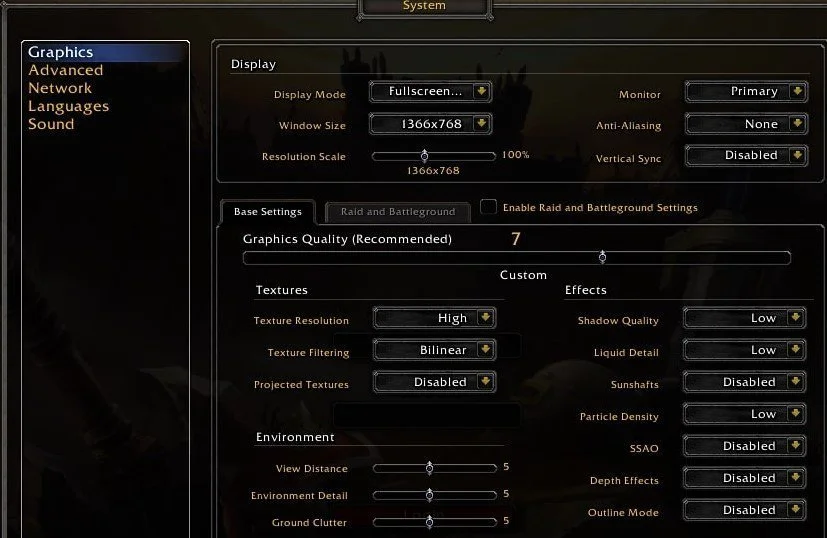
Trade-Off Between Graphical Fidelity and Performance
Optimizing for performance means sacrificing graphical detail to ensure smoother gameplay. Lowering settings like shadows, particle density, and view distance reduces the visual appeal but significantly boosts FPS, especially on older hardware. Prioritize performance over visuals to maintain a playable experience during raids or PvP.
Tips for Maximum Performance on Low-End PCs
- Adjusting Resolution and Fullscreen Mode: Lower your resolution and switch to Fullscreen (Exclusive) mode for better performance.
- Disabling Vertical Sync (Vertical Sync): Turn off Vertical Sync to reduce input lag and improve FPS.
- Set Render Scale Conservatively: Setting it at 50%-75% ensures smoother gameplay while maintaining a playable visual quality.
- Turn Off Unnecessary Features: Disable effects like depth of field, SSAO (Screen Space Ambient Occlusion), and weather effects to reduce GPU load.
Additional Performance Tips
1. Update Graphics Drivers
- Keeping your GPU drivers updated ensures your system can handle the latest graphical optimizations for The War Within. Check for updates on NVIDIA, AMD, or Intel’s official websites regularly.
2. Close Unnecessary Background Applications
- Background applications like browsers, music players, or system utilities can consume valuable CPU and RAM. Use Task Manager to close non-essential programs before launching World of Warcraft.
3. Adjust PC Power Settings
- Setting your power plan to High Performance in Windows ensures your CPU and GPU run at their maximum potential.
- Go to Control Panel > Power Options > High Performance.
4. Monitor System Temperatures
- Overheating can lower your CPU and GPU performance. Use tools like HWMonitor or MSI Afterburner to monitor temperatures and ensure proper cooling.
5. Defragment Your Game Files (for HDDs)
- If playing on a hard drive, defragment your storage to ensure World of Warcraft loads assets faster. For SSDs, ensure you have enough free space for optimal performance.
Impact of Addons
Performance Considerations
Addons enhance gameplay with valuable features, but they can strain your system, especially during high-intensity scenarios like raids or PvP. Excessive or poorly optimized addons can cause FPS drops and input lag.
Optimizing Addon Usage
- Disable Unnecessary Addons
- Turn off addons you don’t actively use, particularly those with high resource demands, such as combat trackers or large UI overhauls.
- Choose Lightweight Alternatives
- Replace heavy addons with lightweight options that offer similar functionality. For example:
Replace WeakAuras templates with simpler configurations.
Use minimalistic UI replacements like ElvUI.
- Replace heavy addons with lightweight options that offer similar functionality. For example:
- Keep Addons Updated
- Outdated addons may cause compatibility issues and performance drops. Use tools like CurseForge to keep them up to date.
- Profile Addon Usage
- Use addons like AddOn CPU Usage to identify resource-heavy addons and disable or replace them as needed.
- Reduce Logging Features
- Many addons log data in the background. Turn off excessive logging or data collection to save system resources.
If you’re utilizing services such as War Within Leveling Services (1-80) to speed up your progression, keeping your system optimized ensures a smoother experience while levelling or tackling new content. By streamlining your addon usage and maintaining a well-optimized system, you can minimize performance issues and enjoy seamless gameplay in The War Within.
Optimizing Graphics Card Settings
For NVIDIA Users
- Enable NVIDIA Reflex
- Reduces the system latency for improved responsiveness.
- Go to NVIDIA Control Panel > Manage 3D Settings > Low Latency Mode and set it to Ultra.
- Disable Vertical Sync
- Prevents input lag while avoiding screen tearing.
- In NVIDIA Control Panel, turn off Vertical Sync and use G-Sync if available.
- Optimize Power Settings
- Ensures maximum GPU performance during gameplay.
- At the NVIDIA Control Panel > Manage 3D Settings, set the Power Management Mode to Prefer Maximum Performance.
- Set Maximum Frame Rate
- Caps FPS for smoother performance and reduced GPU strain.
- In NVIDIA Control Panel, adjust the frame rate limit just below your monitor’s refresh rate.
For AMD Users
- Enable Radeon Anti-Lag
- Reduces input lag for faster response times.
- Open AMD Radeon Software > Graphics Settings > Anti-Lag and toggle it on.
- Use Radeon Boost
- Dynamically lowers resolution during motion to improve FPS.
- Go to Radeon Software > Graphics Settings > Radeon Boost and toggle it on.
- Disable Vertical Sync
- Reduces input lag while preventing screen tearing.
- Turn off Vertical Sync in-game or via AMD Radeon Software and enable FreeSync if supported.
- Optimize Performance Tuning
- Adjust GPU settings to balance power and efficiency.
- In Radeon Software > Performance Tuning, fine-tune clock speeds and fan settings for optimal performance.
Specialized Tips for Competitive Players
Reducing Input Lag and Enabling Low-Latency Modes
- Enable Low-Latency Modes:
- Have an NVIDIA GPU, turn on NVIDIA Reflex Low Latency mode to reduce the input delay, for faster reactions during intense gameplay.
- For AMD users, enable Radeon Anti-Lag for similar benefits.
- Disable Vertical Sync:
- While Vertical Sync prevents screen tearing, it can introduce input lag. Instead, use G-Sync or FreeSync if your monitor supports it for smooth visuals without lag.
- Limit Frame Rate Sensibly:
- Cap your FPS just below your monitor’s refresh rate to ensure smoother gameplay without overloading your GPU.
Maintaining a Consistent Frame Rate
A steady frame rate is essential for competitive play. Drops in FPS can affect reaction times and overall gameplay precision. Adjust settings like Render Scale, Shadows, and Particle Density to maintain a consistent frame rate in crowded areas like battlegrounds or raids.
How to Test and Monitor Performance
Recommended Tools and In-Game Options
- For detailed analysis, try tools like MSI Afterburner or NVIDIA GeForce Experience to monitor GPU, CPU, and memory usage.
Testing Settings Incrementally
- Start with the recommended settings for your hardware (low, medium, or high).
- Gradually adjust individual options, such as View Distance or Anti-Aliasing, while keeping an eye on FPS performance.
- Test your configuration in high-intensity situations like raids, battlegrounds, or areas with dense player activity to ensure stability.
By testing settings incrementally, you’ll find the ideal balance of visual quality and performance tailored to your hardware, ensuring a smooth experience whether exploring or using War Within Services to boost your gameplay.
Conclusion
Optimizing your settings in The War Within can significantly enhance your gameplay experience, whether you’re prioritizing competitive edge or immersive visuals. Key takeaways include:
- Adjusting Render Scale and Shadows to improve performance.
- Utilizing low-latency modes to reduce input lag for competitive play.
- Testing and monitoring performance incrementally to find your ideal configuration.
Experiment with these settings to suit your preferences and hardware capabilities. For players seeking additional optimization tips or ways to enhance their experience, consider exploring related resources like WoW Boosting Services for faster progression or other performance guides.
With the right setup, you’ll enjoy smooth and responsive gameplay in the world of Azeroth!
Top sales

Check other guides




FAQ
- Why does my game stutter even when FPS is stable?
Stuttering can occur due to background disk usage or outdated storage drivers. Ensure your game is installed on an SSD for faster asset loading and disable any disk-intensive applications running in the background.
- How do I keep performance optimized across major patches or updates?
After patches or expansions, reset your graphics settings and reapply optimized configurations. Game updates can sometimes override previous settings, so testing performance again is essential.
- Can network settings affect gameplay performance in The War Within?
While graphics settings are critical, network settings can also impact gameplay. Ensure you have a stable internet connection, prioritize your game in your router’s settings, and close bandwidth-heavy applications to reduce lag.
Author

Hello, dear readers! My name is Twist, and I am the author of the site Boosters.gg, here you will find reviews of various services for boost your favorite game characters and in general a lot of useful things.My goal is to share with you my experience and advice on how to achieve the desired in this or that game. Thank you for your attention!