



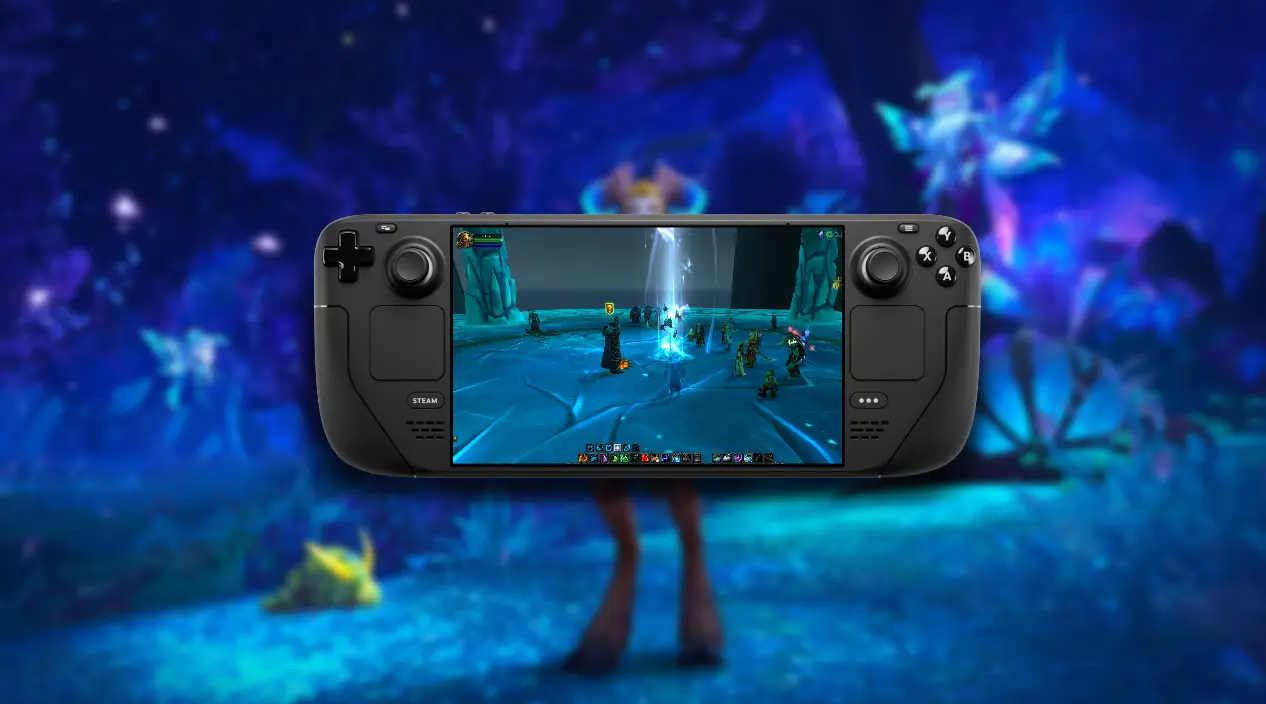
How to Play WoW on Steam Deck
Table of Contents
It offers an exciting way to experience the game on the go and the idea of exploring Azeroth, tackling raids, or completing quests on a portable device adds a whole new level of convenience and flexibility to your gaming experience, players can enjoy a smooth and immersive experience, whether at home or on the move.
This guide is here to help you get started, providing step-by-step instructions for setting up the game, recommending useful addons to enhance gameplay, and suggesting the best settings for optimal performance.

- Install Battle.net on Steam Deck
- Switch to Desktop Mode:
- Power on your Steam Deck, press and hold the Power button, and select Switch to Desktop Mode from the menu.
- Download the Battle.net Installer:
- Open a browser in Desktop Mode and navigate to the official Blizzard website. Download the Battle.net client installer.
- Install a Compatibility Layer:
- Install Proton or Lutris, tools that enable Windows-based software to run on Linux systems (which Steam Deck uses).
- You can find these in the Discover Software Center on the desktop.
- Run the Installer:
- Use Proton or Lutris to launch the Battle.net installer and follow the on-screen instructions to complete the installation.
- Switch to Desktop Mode:
- Add Battle.net to Steam
- Open Steam in Desktop Mode.
- Click Add a Non-Steam Game and browse for the Battle.net executable file.
- Assign a Proton compatibility layer to Battle.net by right-clicking it in your library, selecting Properties, and enabling Proton under Compatibility.
- Download and Install WoW
- Launch Battle.net from your Steam Library.
- Log in to your Blizzard account and download World of Warcraft.
- Once installed, verify that it runs correctly by testing the game in Desktop Mode.
- Switch Back to Gaming Mode
- After confirming WoW works in Desktop Mode, return to Gaming Mode.
- Launch WoW through Steam, ensuring the correct Proton layer is applied if necessary.
Recommended Addons
Addons enhance your experience by providing additional features, interfaces, and quality-of-life improvements. Use a tool like CurseForge to manage your addons efficiently. Here are a few recommendations:
- Deadly Boss Mods (DBM): Essential for dungeon and raid mechanics.
- Details! Damage Meter: Tracks your performance and provides real-time combat data.
- WeakAuras: Highly customisable for tracking buffs, debuffs, and abilities.
- Leatrix Plus: Simplifies travel, automates tasks, and improves overall gameplay.
- Bagnon: Enhances inventory management by consolidating bags into a single interface.
Best Settings for Optimal Performance
The Steam Deck can handle WoW well, but tweaking the settings ensures a smoother experience:
- Graphics Settings:
- Set the graphics quality to Medium or Low for consistent frame rates.
- Turn off Anti-Aliasing or use FXAA for a balance between visuals and performance.
- Reduce view distance and shadow quality to improve performance.
- Resolution and Frame Rate:
- Set resolution to 1280×800.
- Cap the frame rate at 60 FPS for smooth gameplay without unnecessary strain on the device.
- Power Settings:
- Use the Steam Deck’s Performance Overlay to monitor battery consumption and thermals.
- Enable TDP limiting in performance settings to extend battery life during longer gaming sessions.
- Controller Configuration:
- Customize the Steam Deck’s controls to emulate keyboard and mouse functions for easier navigation.
- Consider using a wireless keyboard and mouse for complex gameplay scenarios like raids.
Playing It on Steam Deck
It can be somewhat of a hassle playing on it because it has a Linux-based operating system, while the game is designed for Windows this does not mean it doesn’t work right out of the box but with tools like Proton and Lutris, this problem can be solved by them acting as compatibility layers, allowing them to run smoothly with a few adjustments.
But with some setup and tweaks, it can run reliably making it a great way to enjoy the game on a portable device.
Follow these simple instructions to run it:
- Switch onto the Desktop Mode: Transition to the Steam Deck’s Desktop Mode to access installation tools.
- Install Battle.net: Use a compatibility tool like Proton or Lutris to install Blizzard’s Battle.net launcher.
- Add Battle.net to Steam: Configure Battle.net as a non-Steam game to integrate it into SteamOS and apply necessary compatibility settings.
- Install WoW: Download and install World of Warcraft via the Battle.net client.
- Optimise Settings: Adjust in-game graphics and Steam Deck performance settings to balance visuals and gameplay smoothness.
Installing on Steam Deck
Setting up on the Steam Deck requires a bit of configuration, but the process is straightforward with the right steps. Here’s a detailed breakdown on doing that:
1. Downloading the Battle.net Launcher
- Switch to Desktop Mode:
- Press and hold the Power button, then select Switch to Desktop Mode from the menu.
- Download the Launcher:
- Open the web browser on the Steam Deck’s Desktop Mode.
- Navigate to Blizzard’s official website and download the Battle.net installer.
- Save the File:
- Place the installer in an easily accessible location, like the Downloads folder.
2. Adding Battle.net to Steam as a Non-Steam Game
- Open Steam in Desktop Mode:
- Launch the Steam app from the desktop.
- Add a Non-Steam Game:
- Click on Library > Add a Game (bottom left corner) > Add a Non-Steam Game.
- Browse to the Battle.net installer file and add it to your Steam library.
- Configure Compatibility Settings:
- Find the Battle.net entry in your Steam Library.
- Right-click it, select Properties, then go to the Compatibility tab.
- Enable Force the use of a specific Steam Play compatibility tool and select Proton GE (if installed) or another version of Proton.
3. Installing a Compatibility Tool (Proton GE)
- Install Proton GE:
- Open the Discover Software Center in Desktop Mode.
- Search for ProtonUp-Qt and install it. This tool simplifies installing and managing Proton GE versions.
- Launch ProtonUp-Qt, add Proton GE, and select the latest version.
- Assign Proton GE to Battle.net:
- Return to Steam, right-click on the Battle.net entry, and ensure the selected compatibility tool is Proton GE.
4. Installing WoW via the Battle.net Launcher
- Run the Launcher:
- Launch Battle.net from your Steam Library (still in Desktop Mode).
- Log in to your Blizzard account.
- Download and Install WoW:
- Locate World of Warcraft in the Battle.net client.
- Select the game version (Retail or Classic) and install it.
- Verify Installation:
- Launch WoW through Battle.net in Desktop Mode to ensure it works before switching back to Gaming Mode.
5. Switching to Gaming Mode
- After confirming WoW runs correctly, return to Gaming Mode by clicking Return to Gaming Mode on the desktop.
- Launch WoW from your Steam Library.
Tips for Resolving Common Installation Issues
- Battle.net Won’t Launch:
- Ensure the correct Proton version is assigned to Battle.net.
- Try reinstalling the Battle.net launcher using Proton GE.
- Performance Issues in WoW:
- Reduce in-game graphics settings to Medium or Low.
- Cap the frame rate to 60 FPS to improve stability.
- Use Steam Deck’s Performance Overlay to monitor system performance and adjust settings.
- Addons or Settings Not Saving:
- Run WoW in Administrator Mode via Battle.net to resolve file permission issues.
- Keyboard and Mouse Configuration:
- Use the Steam Deck’s controller configuration to emulate keyboard and mouse inputs. Alternatively, connect external peripherals for better control.
Optimising Gameplay on Steam Deck
To ensure smooth performance and extend battery life while playing on the Steam Deck, tweaking in-game and device-specific settings is essential. By optimizing these configurations, you can enjoy a seamless experience without overburdening the hardware.
Performance and Battery Life Tips
- Limit FPS to 30
- Capping the frame rate to 30 FPS reduces the load on the GPU and CPU, resulting in a cooler device and longer battery life.
- Adjust this setting through the Steam Deck Performance Overlay or within WoW’s in-game settings.
- Set Graphics to Low
- Lower graphics settings significantly improve frame stability. Use Low or Medium presets to ensure smooth gameplay.
- Adjust settings such as texture quality, view distance, and shadow effects to reduce visual strain.
- Optimize Advanced Settings
- Refresh Rate: Set the Steam Deck’s refresh rate to 40Hz for a balance between visual smoothness and energy efficiency.
- Anti-Aliasing: Use FXAA or disable it entirely to lighten the GPU load.
- Resolution: Stick to the Steam Deck’s native 1280×800 resolution for the best performance-to-quality ratio.
- Experiment with Configurations
- Performance optimization depends on individual preferences and play styles. Adjust settings incrementally to find the sweet spot for your desired visuals and smoothness.
- Use the Performance Overlay to monitor real-time metrics like FPS and battery usage.
Recommended Addons
Addons are a crucial part, and several are well-suited to enhance gameplay on the Steam Deck. Here are the essential ones:
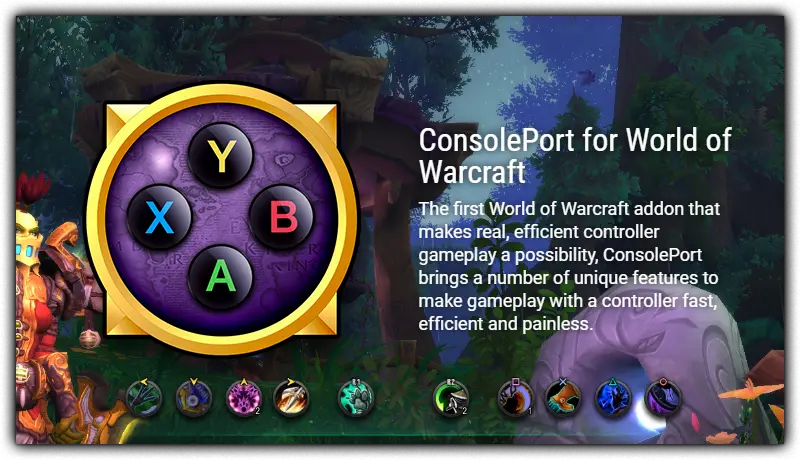
- ConsolePort
- Purpose: Provides full controller support for WoW, mapping essential functions to the Steam Deck’s controls.
- Benefits: Enables a console-like gaming experience, making gameplay more intuitive and ergonomic.
- How to Install: Use a manager like CurseForge to download and configure this addon.
- Immersion
- Purpose: Streamlines the quest interface with a cinematic dialogue box, improving readability on smaller screens.
- Benefits: Enhances the questing experience by making text and choices easier to navigate and aesthetically pleasing.
- How to Install: Install via an addon manager and activate it in the Interface Addon settings.
- DynamicCam
- Purpose: Offers customizable camera angles, improving visuals and creating a more immersive console-like experience.
- Benefits: Helps frame environments and characters dynamically, making handheld gameplay more engaging.
- How to Install: Download and set up via your chosen addon manager, then tweak the settings to suit your preferences.
How to Install Addons on Steam Deck
- Switch to Desktop Mode:
- Use CurseForge or WoWUp, which are compatible with Linux systems.
- Download Addon Manager:
- Install the manager of your choice through the Discover Software Center or directly from the developer’s website.
- Configure the Addon Directory:
- Point the manager to WoW’s addon folder (usually located under the Battle.net directory).
- Select Addons:
- Browse and install your desired addons. Enable them in-game under Interface > Addons.
The Benefits of Addons on Steam Deck
Addons like ConsolePort, Immersion, and DynamicCam transform WoW into a portable-friendly experience. Whether you’re optimizing gameplay with controller support or enhancing visuals with dynamic cameras, addons bridge the gap between a traditional PC setup and handheld gaming. They also provide practical quality-of-life features, perfect for players seeking a quick WoW boost to their portable gaming sessions.
By integrating these optimizations and addons, the Steam Deck becomes a versatile device capable of delivering a top-tier WoW experience on the go.

Pros and Cons of Playing World of Warcraft on Steam Deck
Pros
- Portability for Gaming on the Go
- The Steam Deck allows players to experience World of Warcraft anywhere, providing the freedom to quest, raid, or farm materials without being tied to a desk.
- Versatility in Connecting to External Monitors
- Its compatibility enables seamless connection to external monitors or TVs, which then offers flexibility for those who want a larger display while maintaining portability.
- Comfortable Built-in Controls
- The Steam Deck’s controls are highly customizable and ergonomic, allowing for intuitive gameplay when paired with addons like ConsolePort for controller-style navigation.
Cons
- Limited Battery Life
- High-demand games can drain the battery quickly, with typical playtimes ranging from 2-4 hours depending on settings.
- Smaller Screen Size
- The 7-inch screen, while high-quality, is smaller compared to PC monitors, which can make text-heavy interfaces and detailed visuals harder to read.
- Challenges with Multiple Keybindings and Abilities
- WoW’s complexity, particularly for classes with many abilities, can make it difficult to replicate a traditional keyboard setup on a controller. Players may need to adapt their playstyle or invest in external peripherals.
Best Settings for WoW on Steam Deck
1. FR and RR Adjustments
- Frame-Rate to 30 or 40 FPS: Doing so reduces strain on the hardware, improving battery life and maintaining smooth performance.
- Refresh-Rate to 40Hz: This provides a good balance between smoothness and power efficiency.
2. Graphics Settings
- Graphics: Use the Low or Medium graphics for smoother gameplay.
- Resolution: Stick to its original resolution of 1280×800 for optimal clarity and performance.
- Specific Settings to Lower:
- Shadows: Set to Low or Off.
- View Distance: Adjust to Medium or Low.
- Anti-Aliasing: Use FXAA or turn it off for better performance.
- Particle Density: Lower this to improve frame rates during visually intensive fights.
3. Battery Optimization Tips
- Lower TDP Settings: Use the Steam Deck’s Performance menu to limit the thermal design power (TDP), reducing power consumption.
- Enable Half-Rate Shading: This setting helps extend battery life by slightly lowering graphical fidelity.
- Reduce Brightness: Adjust the screen brightness to a comfortable yet power-efficient level.
Conclusion
To play WoW on the Steam Deck, install the Battle.net launcher using tools tlaked about in the guide like Proton or Lutris, add it there as a non-Steam game, and configure settings for smooth performance. Optimise gameplay with controller support and addons, and adjust graphics settings to balance quality and battery life. This setup provides a fresh way to enjoy the game, whether you’re completing quests, engaging in a Dungeon Boost, or grinding for WoW Gold. For levelling efficiency, consider resources like WoW Power Leveling Boost or community forums for tips and assistance.
Top sales

Check other guides







FAQ
- How do I get better at PvP in WoW?
Focus on gearing up through battlegrounds or arenas, learn your class’s PvP abilities, and practice with team-based strategies. Watching PvP guides and replays can also help improve your skills.
- How can I earn mounts in WoW?
Mounts can be earned through questlines, achievements, reputation rewards, dungeons, raids, and PvP. Farming rare mounts can also be a rewarding challenge.
- What is WoW Power Leveling Boost, and is it worth it?
WoW Power Leveling Boost services help you level a character quickly by having a skilled player or service provider handle the process. It’s useful for players who want to jump straight into endgame content.
Author

Hello, dear readers! My name is Twist, and I am the author of the site Boosters.gg, here you will find reviews of various services for boost your favorite game characters and in general a lot of useful things.My goal is to share with you my experience and advice on how to achieve the desired in this or that game. Thank you for your attention!